Get lots of inbound emails that would be useful for your Knowledge Base? For example, regular newsletters, announcements, or reports?
Add documents, images, audio, and other files to your Knowledge Base simply by sending an email. This is a convenient way to capture content on the go or let team members contribute without needing direct access to your dashboard.
Getting Started
Content uploads via email need the Plus plan or higher. See Plans, Usage and Limits.
To set up content uploads via email:
- Click Settings in the left navigation of your Expert Dashboard
- Click the Connect tab
- Find the Inbound email card
- Turn on Enable content uploads via email
Your Content Email Address
Once enabled, you get a unique content upload address in this format:
{handle}@content.answersfrom.meReplace {handle} with your Answers From Me handle. For example, if your
handle is drsmith, your content email would be
drsmith@content.answersfrom.me.
You can copy this address directly from the settings page.
Controlling Who Can Upload
Unlike agent replies, content upload requires an allow list. You must specify which email addresses can send content to protect your knowledge base from unwanted additions.
Add allowed senders in the Allow senders field. You can use wildcard patterns:
jane@example.com- allows only this specific address*@company.com- allows anyone from company.com*@myteam.org- allows your entire team domain
Without at least one allowed sender, content upload won't accept any emails.
Supported File Types
You can upload a variety of file types as email attachments:
- Documents: PDF, Word (.doc, .docx), PowerPoint (.ppt, .pptx), Excel (.xls, .xlsx)
- Text files: Plain text (.txt), Rich text (.rtf), Markdown (.md)
- Images: JPEG, PNG, GIF, WebP
- Audio: MP3, WAV, M4A, and other common formats
- Video: MP4, MOV, and other common formats
All attached files will be processed and added to your Knowledge Base.
Content Processing Options
The Treat email body as dropdown controls how the text in your email is handled:
- Upload: The email body is saved as a document in your Knowledge Base
- Conversation: The email body is treated as a conversation or Q&A exchange. It is visible in your Conversations list on your Expert dashboard, and you can extract insights from it, but it is not added to your main Knowledge Base
- Ignore: Only attachments are processed; the email body is discarded
- Autodetect: We'll use signals in the content itself to determine how to disposition it in one of the three ways above.
The Treat email attachment as dropdown controls how the attachments in your email are handled, with just two options:
- Upload: Each email attachment is saved as a document in your Knowledge Base
- Ignore: Only the body is processed; attachments discarded
Choose the options that best fits how you plan to use email uploads.
Notifications
When content is successfully uploaded via email, you can receive an email notification confirming what was added. This helps you stay informed about new content in your Knowledge Base, especially when team members are contributing.
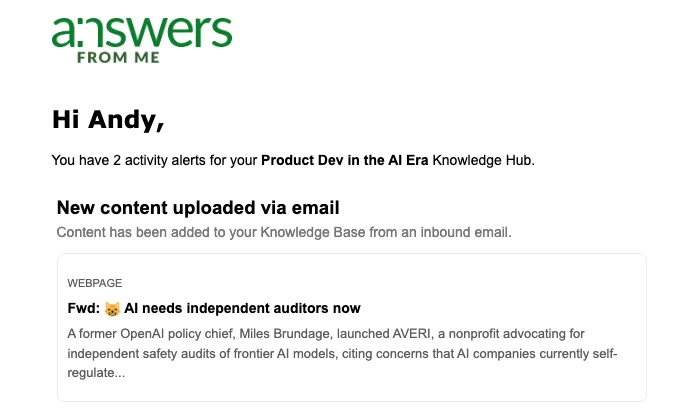
The notification includes: - Which files were uploaded - When they were processed - A link to view the content in your dashboard
Notifications are set in the Activity Notifications card on the Agent tab of your Settings.
Tips & Best Practices
- Use descriptive subject lines: The email subject becomes part of the content metadata
- One topic per email: Keep uploads focused for better organization
- Team collaboration: Enable receiving content from trusted team members so they can contribute articles, meeting notes, or reference materials
- Mobile capture: Email content from your phone when you find something useful, potentially adding your personal email addresses as allowed senders
- Forward newsletters: Automatically forward valuable industry newsletters to capture them
- Voice memos: Record audio notes on your phone and email them for transcription
Was this article helpful?
That’s Great!
Thank you for your feedback
Sorry! We couldn't be helpful
Thank you for your feedback
Feedback sent
We appreciate your effort and will try to fix the article