Many of us are overwhelmed responding to emails, especially when we receive similar questions repeatedly. Answers From Me can help by letting your agent automatically reply to emails on your behalf, using your knowledge base to provide accurate and helpful responses.
When someone sends an email to your agent's address, it uses your knowledge base to craft a helpful response, just like chatting with your agent on the web.
Getting Started
Agent email replies need the Plus plan or higher. See Plans, Usage and Limits.
To set up agent email replies:
- Click Settings in the left navigation of your Expert Dashboard
- Click the Connect tab
- Find the Inbound email card
- Turn on Enable agent replies via email
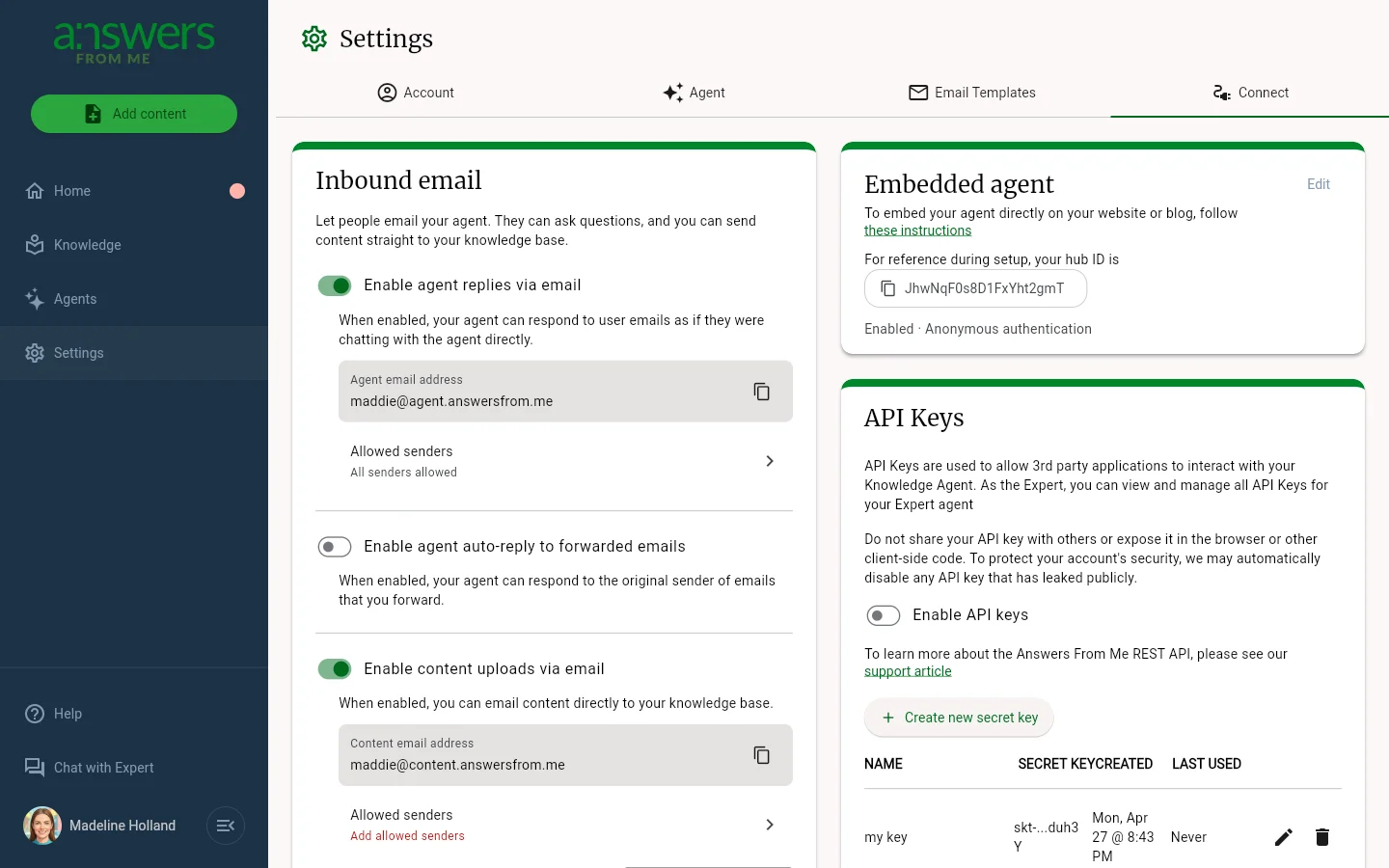
Your Agent Email Address
Once enabled, your agent gets a unique email address in this format:
{handle}@agent.answersfrom.meReplace {handle} with your Answers From Me handle. For example, if your
handle is drsmith, your agent's email would be drsmith@agent.answersfrom.me.
You can copy this address directly from the settings page using the copy button.
Controlling Who Can Send
To prevent spam and unauthorized access, you can specify which email addresses are allowed to send to your agent. In the Allow senders field, add the email addresses or patterns you want to permit.
You can use wildcard patterns to allow entire domains:
jane@example.com- allows only this specific address*@company.com- allows anyone from company.com*@*.edu- allows anyone from any .edu domain
If the allow list is empty, anyone can send to your agent. We recommend adding at least your own email address to get started.
[!NOTE] If you have monetization enabled for your agent, then only active subscribers will receive a reply to their inquiry. Other senders will get a reply about subscribing to your agent.
How It Works
- Someone sends an email to
{handle}@agent.answersfrom.me - Your agent searches your knowledge base for relevant information
- It composes a response based on your expertise
- The response is sent back to the sender
Responses maintain email threading, so the conversation stays organized in everyone's inbox. Your agent includes a brief signature indicating the response was AI-generated.
Tips & Best Practices
- Start with yourself: Add your own email to the allow list first and test with a few questions
- Review responses: Check your agent's sent emails periodically to ensure quality
- Update your knowledge base: If your agent gives incomplete answers, add more content to help it respond better
- Use for FAQs: Agent email replies work best for questions your knowledge base already covers well
Was this article helpful?
That’s Great!
Thank you for your feedback
Sorry! We couldn't be helpful
Thank you for your feedback
Feedback sent
We appreciate your effort and will try to fix the article