Your Expert Page is a public-facing page for your Knowledge Agent. It provides an easy way for users to find you and interact with your agent directly. You can share your Expert Page URL on LinkedIn, in your email signature, on your website, or anywhere else you want to connect people with your agent.
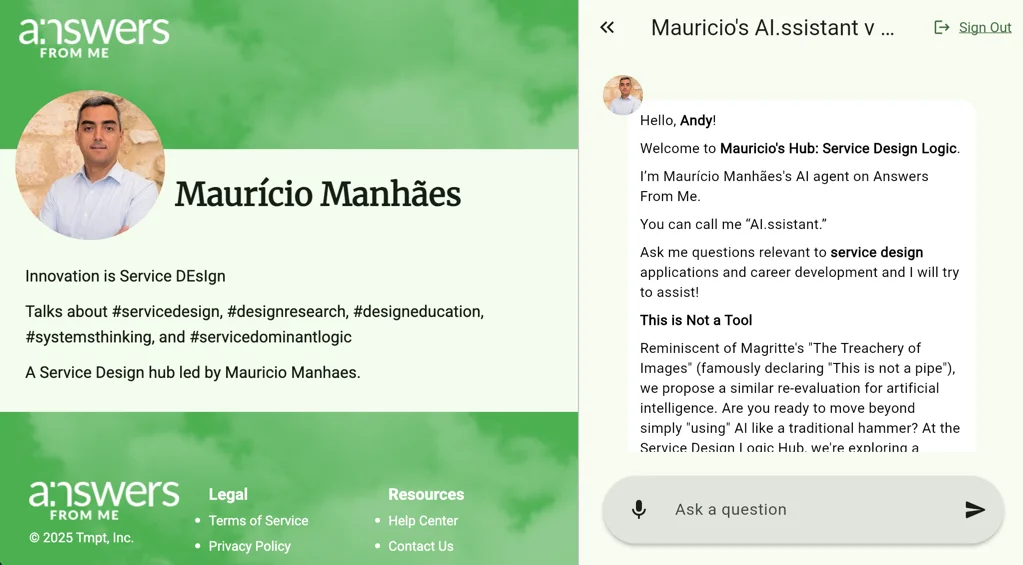
Setting Up Your Expert Page URL
To configure your Expert Page, click Settings in the left navigation of your Expert Dashboard. On the Agent tab, find the Expert Page card. This card contains all the settings for making your Expert Page accessible to visitors.
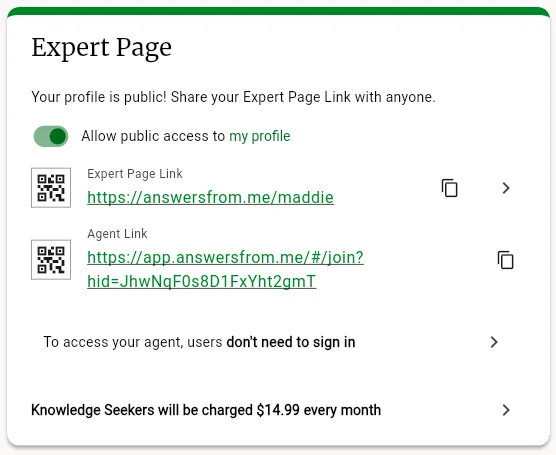
To make your Expert Page public, toggle Allow public access to my profile to on. When enabled, you'll see a "Your profile is public!" status message confirming visitors can access your page.
The Expert Page Link section displays your URL along with a QR code you can use for sharing. Your URL follows the format:
answersfrom.me/{your-handle}Note that your handle also controls your agent's email address, so choose something memorable and professional.
Controlling Your Expert Page Appearance
Several settings from your Profile determine how your Expert Page looks to visitors:
- Name - Your display name shown on the page
- Profile image - Your avatar that appears alongside your name
- Header image - The banner image at the top of your Expert Page
- Bio - A brief description of you and what your agent can help with
Keep these updated to ensure your Expert Page accurately represents you and your expertise.
Social Links
Below the Expert Page card, you'll find a separate Social Links card where you can add links to your professional profiles and resources.
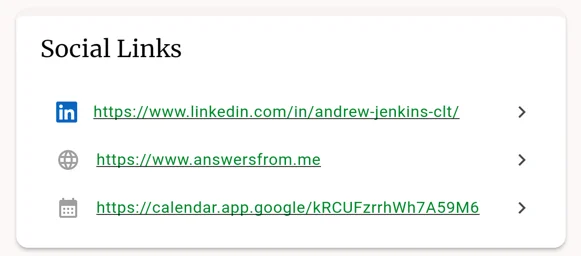
Available link types include:
- LinkedIn - Your LinkedIn profile URL
- Website - A link to your personal or business website
- Calendar - A scheduling link (like Calendly) so visitors can book time with you
These links appear on your Expert Page, giving visitors easy ways to connect with you beyond the chat interface.
Setting the Agent Authentication Behavior
You can control whether visitors need to sign in before chatting with your agent. In the Expert Page card, click the authentication row (which shows your current setting, such as "users must sign in immediately") to open the authentication options.
Three authentication options are available:
-
Immediate - Users must sign in before they can chat with your agent. Use this if you want to know who is interacting with your agent from the start.
-
Optional - Users can chat anonymously without signing in. A sign-in option is available but not enforced. This provides the lowest barrier to interaction.
-
After a few answers - Users get a configurable number of free answers before being required to sign in to continue. When you select this option, a text box appears where you can specify how many answers to allow before requiring authentication.
Choose the option that best fits your audience and how you want to engage with visitors.
Featuring Content on Your Expert Page
You can showcase your best content by adding featured items to your Expert Page. Featured content appears prominently on your page, making it easy for visitors to discover your top resources.
For detailed instructions on setting up featured content, see Add Featured Content to your Expert Page.
Tips
- Keep your profile information current so your Expert Page reflects your latest expertise
- Choose an authentication setting based on your audience's needs and your engagement goals
- Add featured content to highlight your most valuable resources for visitors
- If you want to use the inbound email feature but don't want your expert page to be public, you can momentarily enable public access to set your "handle", then disable public access again. That way your email will be set, but your expert page won't be publicly visible.
Was this article helpful?
That’s Great!
Thank you for your feedback
Sorry! We couldn't be helpful
Thank you for your feedback
Feedback sent
We appreciate your effort and will try to fix the article