You can showcase your best content by adding featured items to your Expert Page. Featured content appears prominently on your page, making it easy for visitors to find and engage with your top resources.
Below is an example of Featured Content on an Expert Page. You can add articles, videos, web links, or any other type of content item from your Knowledge Base.
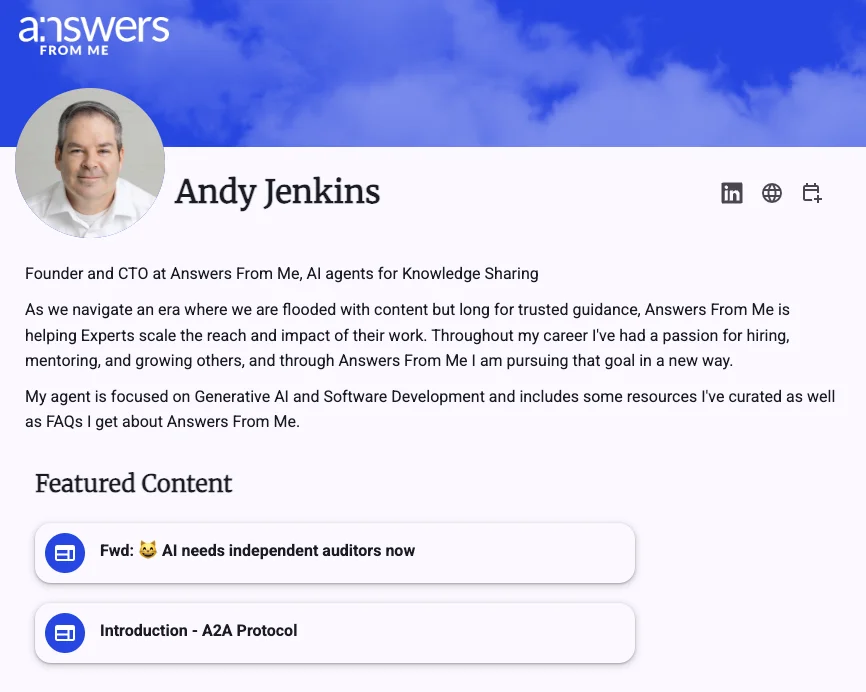
Featured content is driven by Playlists. A Playlist is a curated list of content items from your Knowledge Base that you want to highlight. You can create multiple Playlists for different themes or topics. Any playlist that has its "Feature this playlist" option enabled will have its items shown on your Expert Page.
Creating a Featured Playlist
To begin, navigate to the Knowledge section in the left navigation of your Expert Dashboard and then select the Playlists tab. Next to the Playlists heading, click the New Playlist button.
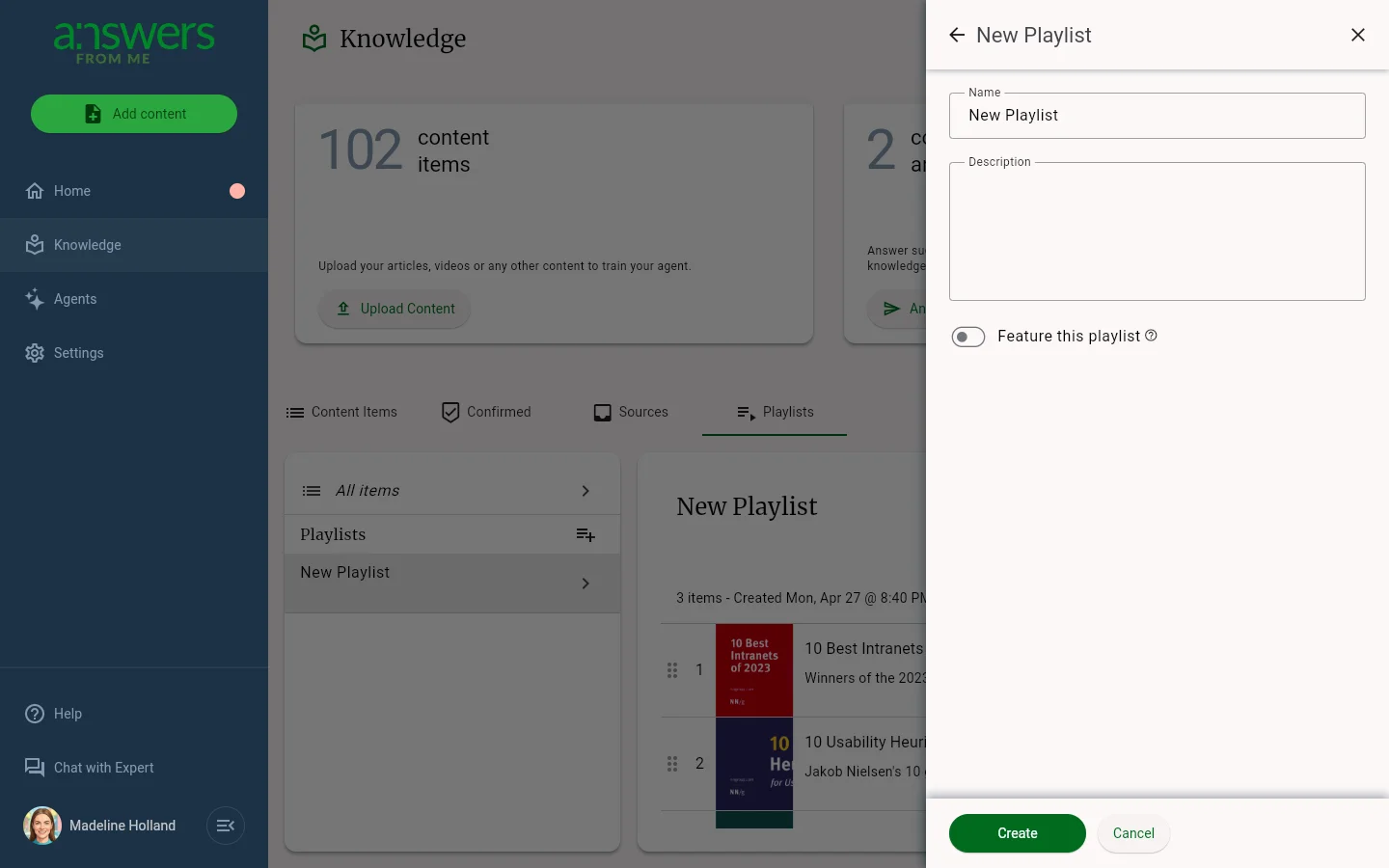
Set a name and optionally a description for your playlist. Then, enable the "Feature this playlist" option to have its items appear on your Expert Page. Finally, click "Create".
Selecting items for a playlist
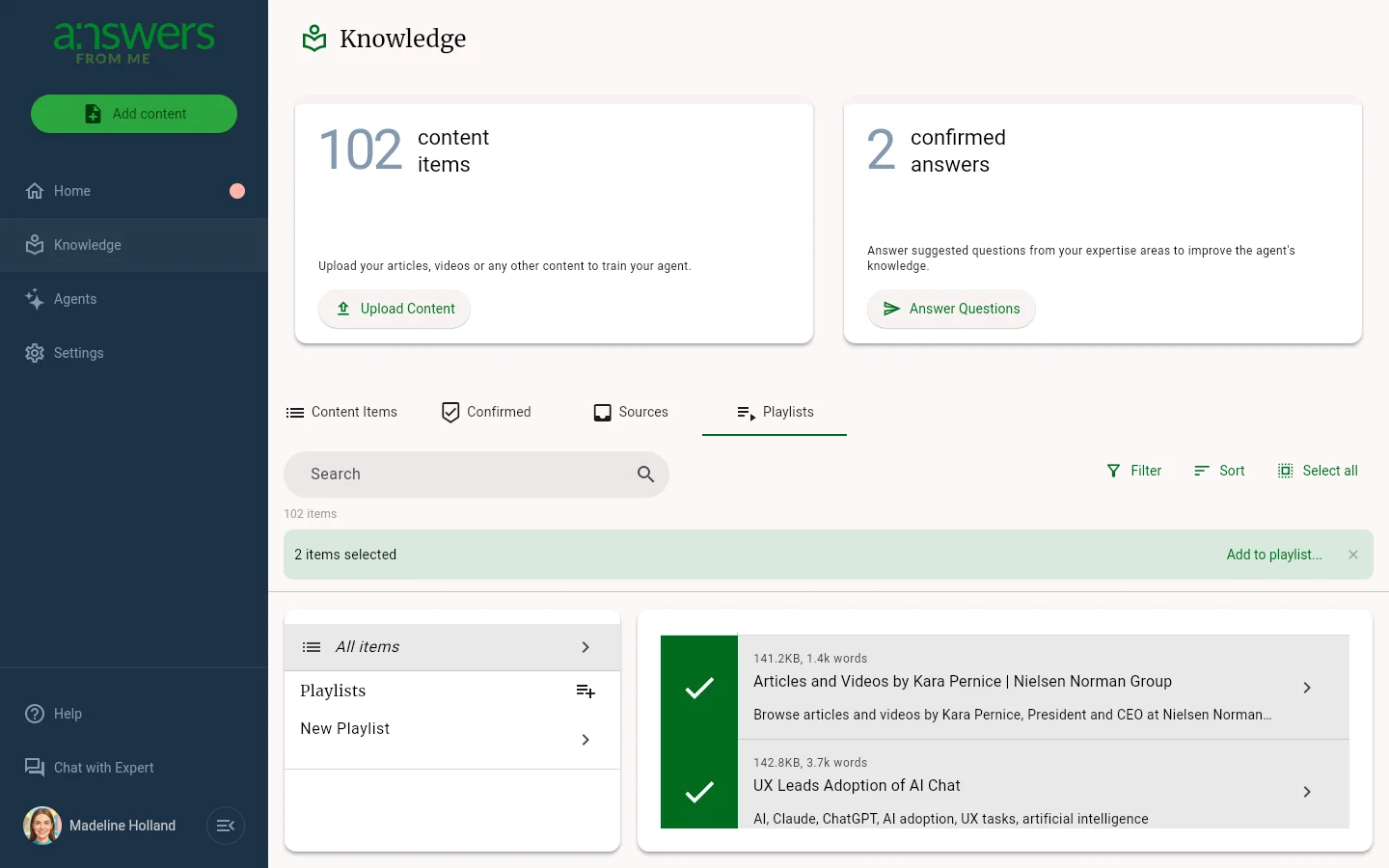
After creating your playlist, you can add items to it. From the main playlists tab, click the All Items button at the top left of the page. This allows you to search and select from all of the items in your Knowledge Base. Use the checkboxes to select items you want to add, and then click the "Add to playlist..." button that appears.
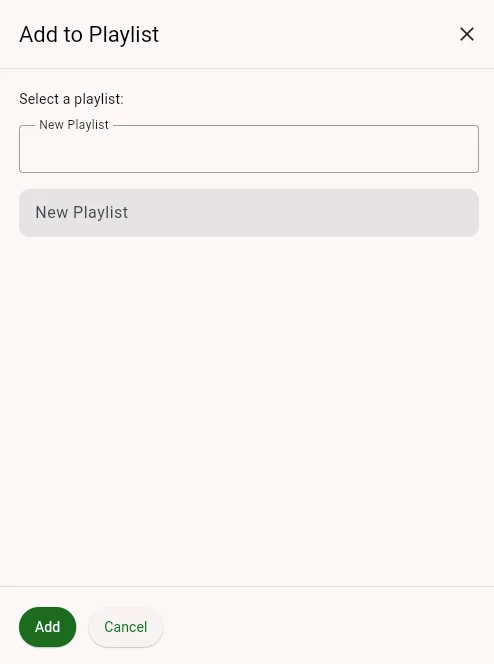
Choose the playlist you created earlier from the dropdown, and then click "Add Items". You can repeat this process to add more items to your featured playlist as needed.
Refresh your Expert Page to see the newly created featured content section with the items from your playlist.
Was this article helpful?
That’s Great!
Thank you for your feedback
Sorry! We couldn't be helpful
Thank you for your feedback
Feedback sent
We appreciate your effort and will try to fix the article