Overview
As an Expert, you have full control over who can interact with your Knowledge Agent. From the People page you can Remove a seeker from your hub, or Remove and Block them so they can't re-join using the same email address. This article explains when to use each option and how the two actions differ.
When to Use Remove vs. Remove and Block
Remove
Use Remove when a seeker is in your hub but shouldn't be — and there's no reason to prevent them from coming back. A Remove is treated the same as if the seeker had voluntarily left your agent on their own.
Common reasons to remove a seeker:
- A test account you created while setting things up
- Someone who joined by accident via an Agent Link or invitation
- A former client, student, or cohort member whose engagement has wrapped up
- Anyone who simply shouldn't appear in your active seeker list anymore
Remove and Block
Use Remove and Block when, in addition to removing the seeker, you want to prevent them from re-joining your agent with the same email address. This is the right choice when a seeker is behaving in a way that is abusive, disruptive, or otherwise unwelcome in your hub.
Blocked seekers appear on the Blocked tab of your People page, and you can unblock them later if the block was accidental or circumstances change.
How to Remove or Block a Seeker
- From your Expert Dashboard, click People in the left sidebar
- Open the Seekers tab to see everyone currently connected to your agent
- Click the seeker you want to manage — their Member Details panel will open on the right
- Choose one of the following:
- Click Remove to remove the seeker from your hub
- Click Remove and Block to remove the seeker and block their email from re-joining
- Confirm the action when prompted
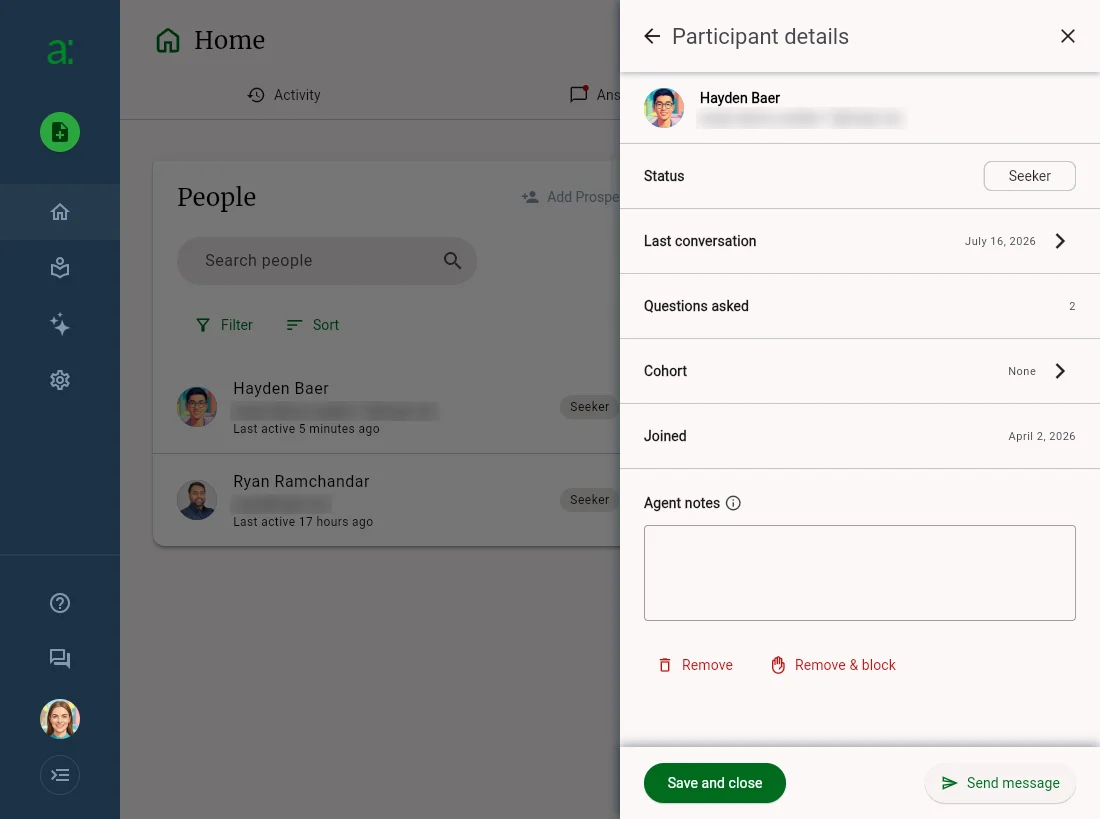
The Participant details panel, opened by clicking a seeker on the People page
What Happens When You Remove or Block a Seeker
Both Remove and Remove and Block have the same immediate effect on the seeker's relationship with your agent:
- The seeker is removed from your Seekers list
- Your conversations with that seeker are removed from the seeker's chat history on their side — they will no longer see past exchanges with your agent
- The seeker is not explicitly notified that they were removed or blocked
The difference is what happens next:
- Remove — the seeker is free to re-join your agent at any time (for example, by using your Agent Link again or accepting a new invitation)
- Remove and Block — the seeker cannot re-join your agent using the same email address
What Blocking Does Not Do
Blocking is scoped to a specific email address on your agent. It's important to understand the limits:
- If you allow anonymous access on your Expert Page, a blocked user can still reach your agent that way
- If a blocked user signs up again using a different email address, they will be able to access your agent under that new identity
- Blocking only affects your own agent — it has no effect on other Experts or their agents on Answers From Me
If you're dealing with persistent abuse that can't be stopped with a block, contact support and we'll help.
Managing Blocked Seekers
All blocked seekers are listed on the Blocked tab of the People page. From there you can:
- Review who you've previously blocked
- Unblock a seeker if the block was accidental or you've decided to give them another chance
Unblocking a seeker does not automatically re-add them to your agent — they'll need to re-join themselves using your Agent Link or a new invitation.
Best Practices
- Start with Remove if you're unsure. Removal is the lighter-touch option and the seeker can always be blocked later if problems persist
- Use Remove and Block for abuse. Don't hesitate to block seekers who are harassing you, sending abusive messages, or otherwise disrupting your hub
- Use Notes for context. The Notes field in Member Details is private to you — it's a good place to record why a seeker was removed or blocked in case you need the context later
- Review your Blocked list occasionally. If you've blocked someone by mistake, the Blocked tab makes it easy to undo
Getting Help
If you need assistance managing seekers in your hub, check out the in app help (available from the Help button in the left navigation), review available help at https://help.answersfrom.me or contact support.
Was this article helpful?
That’s Great!
Thank you for your feedback
Sorry! We couldn't be helpful
Thank you for your feedback
Feedback sent
We appreciate your effort and will try to fix the article