Sometimes you want a trusted person — an assistant, a team member, a family member — to work in your Answers From Me account on your behalf. A common example is an assistant who uploads content to your Knowledge Hub, curates your agent's answers, or responds to seekers for you.
Answers From Me doesn't require a separate account for your delegate. Instead, you can request a magic link (a one-time sign-in link sent to your email) and forward it to your delegate. When they open the link, they are signed in to your account and can work exactly as you would.
Before You Share Access
A delegate signed in with your magic link has full access to your account. They can see and do everything you can — add or remove content, message seekers as you, change settings, and view your conversations. In other words, they can act as you on the platform.
Only share a magic link with someone you fully trust. If you're ever unsure whether a delegate should still have access, revoke it — see Revoking a Delegate's Access below.
Sending a Magic Link to Your Delegate
- Sign out of Answers From Me — click your profile avatar (typically bottom left of screen on desktp, upper right on mobile) and choose Sign Out
- On the sign-in page, enter your own email address and click Continue. Do this even if you normally use Continue with Google — entering your email is what gets you to the next screen
- On the Welcome back screen, click Send a magic link
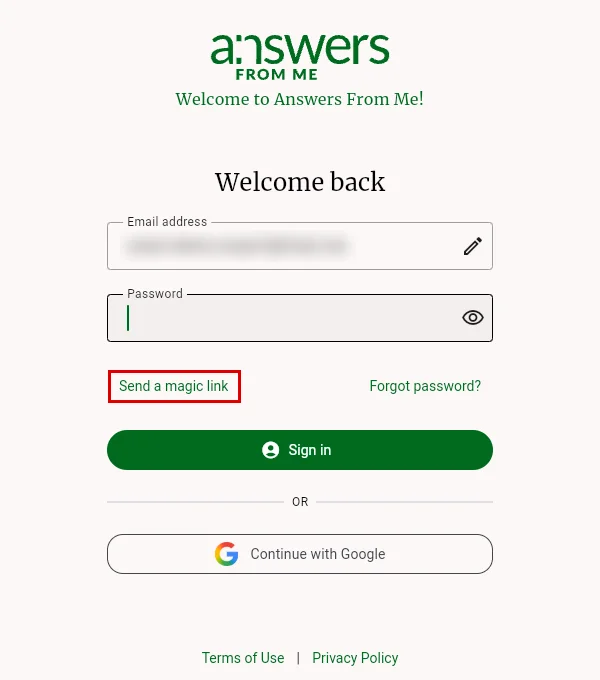
The Welcome back screen — click Send a magic link below the password field
- Check your email inbox for the magic link message. Don't click the link yourself — the link is one-time use, and clicking it will consume it
- Forward the email (or the link itself) to your delegate
- When your delegate opens the link, they'll be signed in to your account and can begin working on your behalf
If your delegate signs out or needs to sign in on another device later, just repeat these steps to send them a fresh link.
What to Expect While a Delegate Has Access
- Email notifications continue to go to your inbox. Notifications from Answers From Me are tied to your account email, not to whoever is signed in
- You can stay signed in too. Sharing a magic link doesn't sign you out anywhere else — you and your delegate can both be signed in to the account at the same time, in separate browsers
- The delegate's activity is your activity. Anything your delegate does — content they add, answers they edit, messages they send — appears to seekers and to the platform as coming from you
Revoking a Delegate's Access
When a delegate no longer needs access (or you want to cut off access immediately), sign out every session on the account:
- Click Settings in the left navigation. Experts then click the Account tab
- In the Authentication card, click Sign out everywhere
- Confirm when prompted
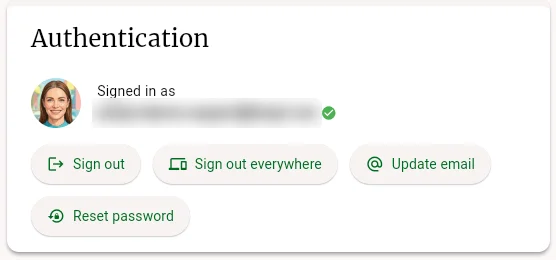
Settings — Sign out everywhere ends every session on the account
Sign out everywhere signs out every browser signed in to your account — including your own. You'll be returned to the sign-in page, where you can sign back in as usual. Any magic link that has already been used cannot be reused, so your delegate stays signed out until you choose to send them a new link.
Best Practices
- Send a fresh link each time. Because magic links are one-time use, request a new one whenever your delegate needs to sign in again — don't try to save or reuse old links
- Revoke access when work wraps up. If a delegate's engagement ends, use Sign out everywhere rather than assuming their session will lapse on its own
- Keep the circle small. Delegate access is all-or-nothing, so limit it to the one or two people who genuinely need it
Getting Help
If you need assistance with delegate access or signing in, check out the in app help (available from the Help button in the left navigation), review available help at https://help.answersfrom.me or contact support.
Was this article helpful?
That’s Great!
Thank you for your feedback
Sorry! We couldn't be helpful
Thank you for your feedback
Feedback sent
We appreciate your effort and will try to fix the article