Here are some easy ways to help you keep your expert's knowledge agent just a click away:
TABLE OF CONTENTS
- Bookmark a Page in Chrome from a Computer
- Bookmark a Page in Safari from a Mac
- Add an Answers App Tile to Your Desktop
- Add an Answers App Tile to your iPhone/iPad Home Screen
- Add an Answers App Tile to your Android Home Screen
Bookmark a Page in Chrome from a Computer
You can bookmark an expert page, such as https://answersfrom.me/scott, or any page in the application, such as https://app.answersfrom.me/#/agent.
1. Open Chrome and navigate to the webpage you want to bookmark.
2. Click the star icon on the far right of the address bar.

3. In the pop-up dialog, you can:
- Edit the name of the bookmark, entering "Answers from [your expert]" (insert your expert's name)
- In the folder dropdown, ensure Bookmark Bar is selected
4. Click Done to save the bookmark, and it will show at the top of your Chrome view. (If it does not, go to the View menu and ensure that "Always Show Bookmarks Bar" has been checked).
Bookmark a Page in Safari from a Mac
You can bookmark an expert page, such as https://answersfrom.me/scott, or any page in the application, such as https://app.answersfrom.me/#/agent.
1. Navigate to the webpage you want to bookmark.
2. Click the Share button in the top-right corner of the toolbar (That's the square with an up arrow)

3. A pop-up will appear where you can name the bookmark
- Edit the name of the bookmark, entering "Answers from [your expert]" (insert your expert's name)
- In the folder dropdown, ensure Favorites is selected
4. Click Add to save the bookmark, and it will show at the top of your Safari view. (If it does not, go to the View menu and click on Show Favorites Bar.)
Add an Answers App Tile to Your Desktop
Installing Answers From Me as an app on your desktop makes it easier to launch when you're on a PC or Mac and remembers which conversation you're in.
1. In a browser, navigate to https://app.answersfrom.me
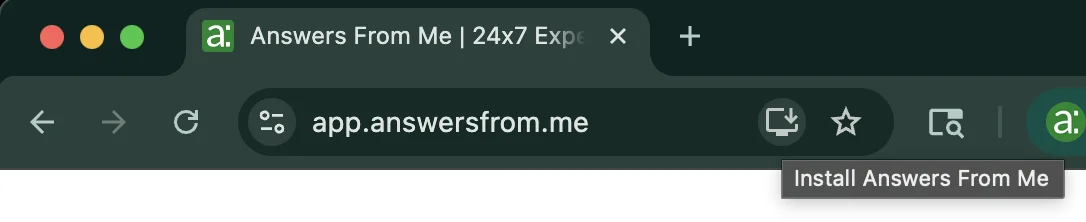
2. Click on the Install button just to the right of the address bar
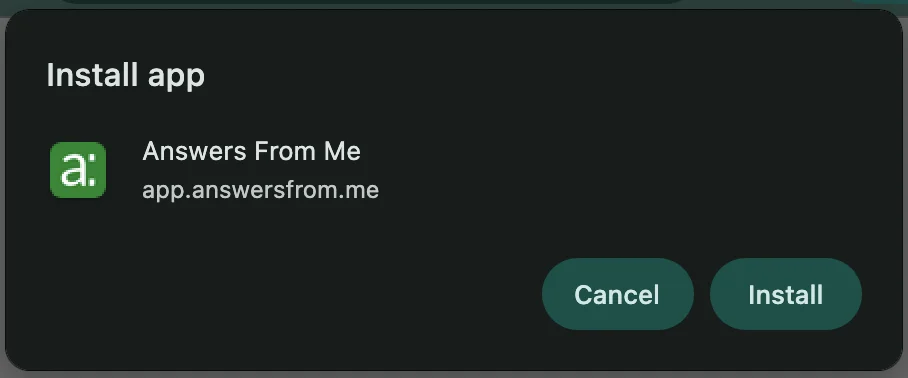
3. Click Install again to confirm installation
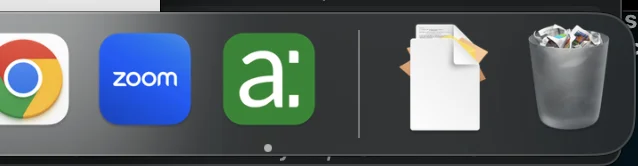
4. You can now launch Answers From Me as you would any other application:
Add an Answers App Tile to your iPhone/iPad Home Screen
Create an icon on your iOS home screen that will open up Answers From Me just like an app.
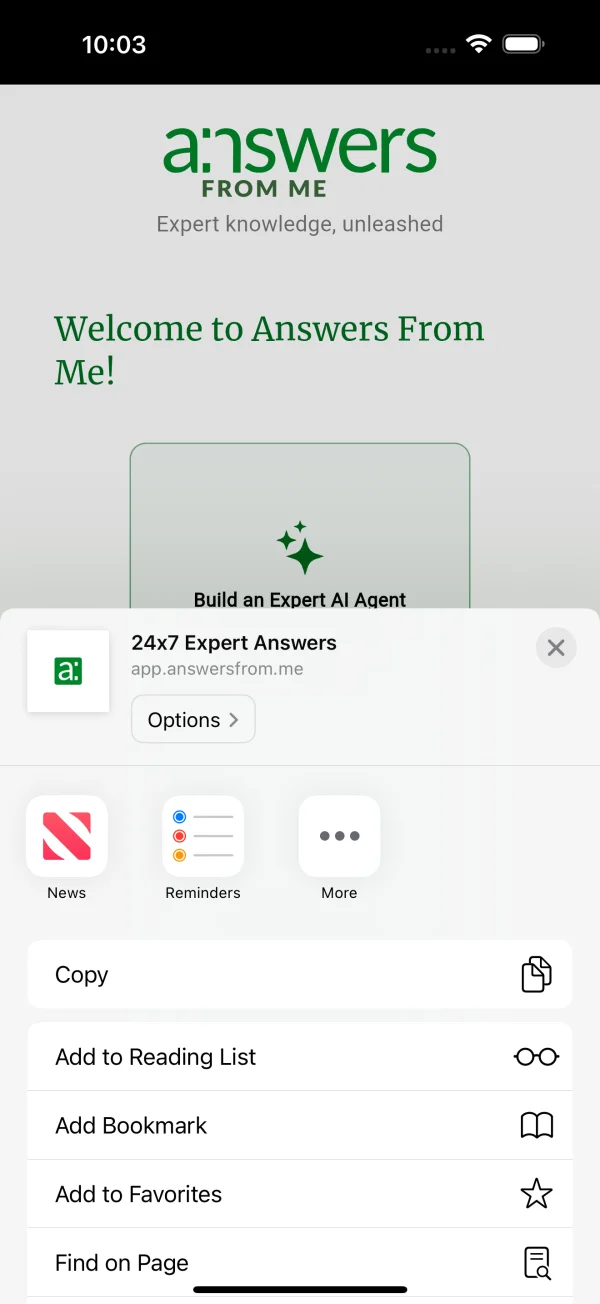 |
1. Open Safari on your iPhone/iPad. 2. Go to https://app.answersfrom.me 3. Once the page is fully loaded, tap the Share button. That's the square with an up arrow, at the bottom of the screen (on iPhone) or top-right (on iPad). 4. In the Share sheet that slides up, scroll down until you see Add to Home Screen and then tap it.
5. When the name looks right, tap Add in the top-right corner. 6. Safari will close, and you'll be taken back to your Home Screen, where you should now see a new icon labeled "Answers from...". |
Add an Answers App Tile to your Android Home Screen
Create an icon on your Android home screen that will open up Answers From Me just like an app.
|
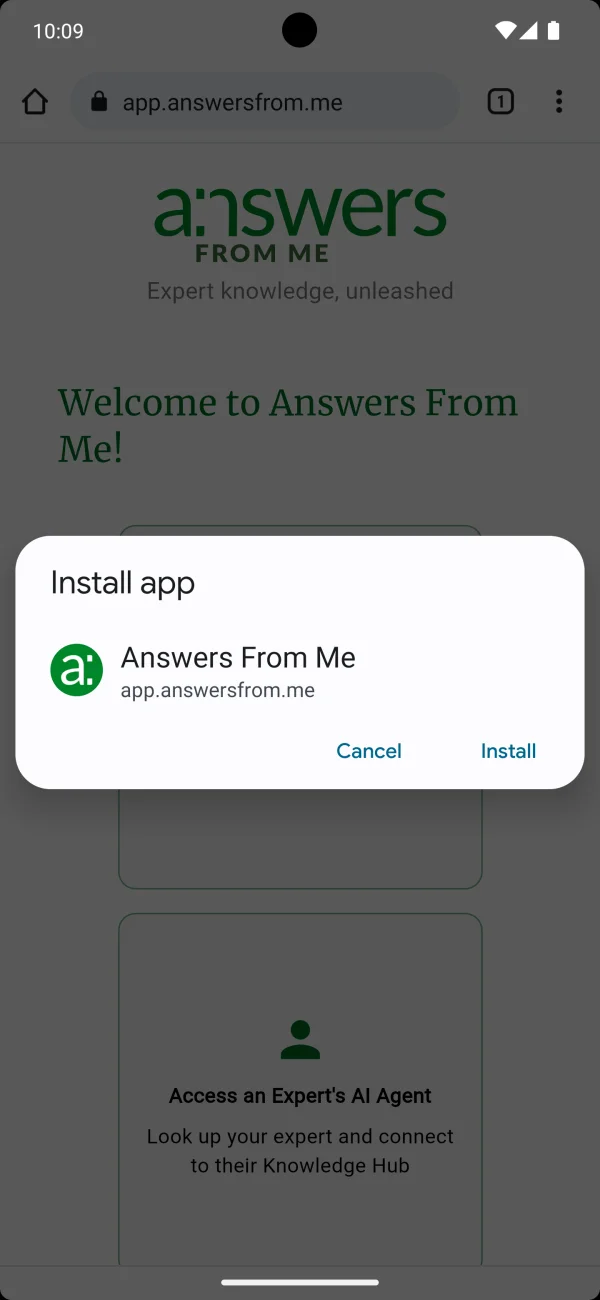
1. Open your mobile browser. 2. Go to https://app.answersfrom.me 3. Once the page is fully loaded, tap the three vertical dots icon in the upper right to show page options. 4. Scroll down until you see Install app and then tap it. 5. You'll be asked to confirm installation. Click Install app and then Add to home screen. 6. Whenever you close the browser and view your home screen, you should now see a new icon labeled "Answers" that you can move to a convenient location. |
 |
Was this article helpful?
That’s Great!
Thank you for your feedback
Sorry! We couldn't be helpful
Thank you for your feedback
Feedback sent
We appreciate your effort and will try to fix the article