Many of your conversations contain valuable knowledge, but that knowledge is rarely tidy. It arrives mixed in with personal information, confidential details, scheduling chatter, and passing remarks that were never meant to become part of what your agent knows. The same is true of documents: a report worth learning from may sit alongside client names or figures you would rather not share.
Answers From Me can automatically extract insights from your uploaded documents and your conversations, and add those insights to your Knowledge Base in place of the full content. You keep the knowledge and leave the rest behind.
What Is an Insight?
An insight is a short factual statement — usually one or two sentences — drawn from a document or a conversation. Each item produces a handful of them, typically five to ten, and each insight is added to your Knowledge Base as its own note.
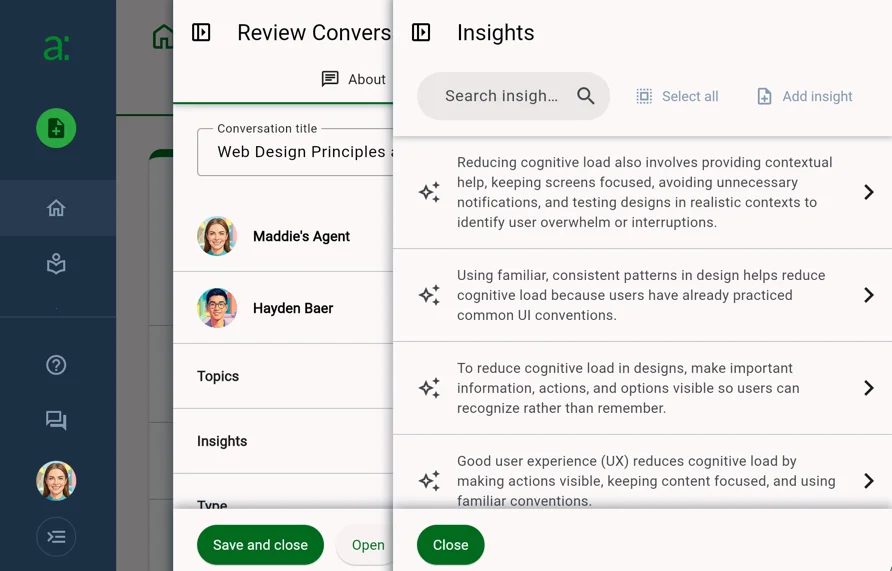
Because insights stand on their own, your agent can draw on what was said without the surrounding material ever entering your Knowledge Base.
Insights from Uploads
When you add an upload, select the Sensitive option. Instead of adding the full content to your Knowledge Base, Answers From Me generates insights from it and adds those.
This is the right choice for material you want your agent to learn from but not to reproduce — client session notes, internal reports, contracts, or anything containing details that belong to someone else. See Add Content to your Knowledge Hub for the full upload walkthrough. Sensitive uploads are part of the Plus plan and higher; see Plans, Usage and Limits.
Insights from Conversations
Insights from conversations are accessible by selecting the conversation on the Conversations list in your Expert Dashboard and then clicking the Insights row. If you don't have insights automatically generated for the conversation, you can click Generate Insights to create them.
Insights can be generated automatically as conversations happen. Open Settings from the left navigation of your Expert Dashboard and find the Automatic Insights card on the Agent tab.
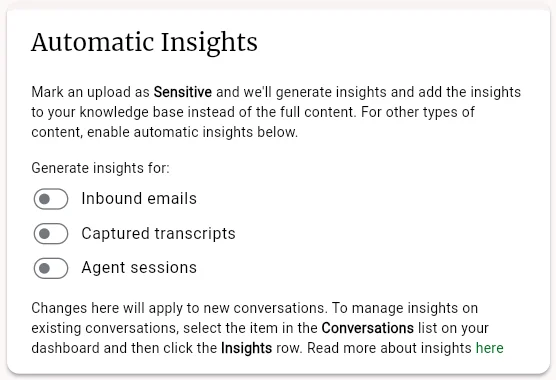
You can enable insights for each kind of conversation separately:
- Inbound emails — questions and replies that arrive by email
- Captured transcripts — recorded calls, meetings, and interviews
- Agent sessions — conversations between your Knowledge Agent and the people who ask it questions
Changes apply to new conversations. To manage insights on conversations you already have, select the item in the Conversations list on your dashboard and then click the Insights row.
Why Agent Session Insights Stay Out of Your Knowledge Base
Insights from agent sessions are generated for you to read, but they are not indexed into your Knowledge Base. This is deliberate.
Your agent answers from your Knowledge Base. Feeding insights drawn from those answers back into the Knowledge Base would return knowledge you already have, reworded — and each pass would drift a little further from what you originally said, while crowding out the material you actually wrote. Your Knowledge Base would grow without gaining anything.
Emails and transcripts are different: they carry knowledge from the outside world that your Knowledge Base has never seen. That is knowledge worth adding. Agent session insights are still worth reading — they show you what your agent is saying and where your knowledge is thin — so they are surfaced for review rather than indexed.
Reviewing Your Insights
Insights are yours to curate. Open the Insights panel for any conversation or content item and you can:
- Search your insights to find a particular statement
- Click an insight to edit its wording or delete it
- Add an insight of your own
- Select all to act on the full list at once
Insights you edit or add are indexed exactly like generated ones.
Reviewing is worth the minute it takes. Transcription is imperfect, and a misheard term can turn a good insight into a confusing one. An insight may also be accurate but lack the context that made it meaningful, or simply capture something you would rather your agent not repeat. Editing and deleting are the fastest ways to make sure your Knowledge Base reflects what you actually know.
Was this article helpful?
That’s Great!
Thank you for your feedback
Sorry! We couldn't be helpful
Thank you for your feedback
Feedback sent
We appreciate your effort and will try to fix the article