Answers From Me runs a remote Model Context Protocol (MCP) server so AI tools — such as Claude Code, Google Gemini, and others — can reach an expert's knowledge agent as a set of callable tools, without writing any integration code.
What is Model Context Protocol (MCP)?
MCP (Model Context Protocol) is an open-source standard for connecting AI applications to external systems. Using MCP, AI applications like Claude or ChatGPT can connect to data sources, tools, and workflows--enabling them to access key information and perform tasks.
Why access an agent from within an agent?
General-purpose AI tools powered by LLMs are good at recalling, synthesizing, and summarizing information. But as answer engines they are often flawed, especially on topics where taste or opinion is important: they equivocate, present the median opinion of over-weighted sources such as Reddit, have invisible biases, and when pressed for specifics they may hallucinate or make up citations.
An expert's agent answers differently. It draws on one real person's knowledge, experience, and point of view,
so it can give you the opinionated, specific take a generalist won't. Pulling that agent into your conversation--for
example, @@expert_handle What's your perspective on this?--drops the expert's voice into the work right where you
need it, alongside everything the assistant already has in context.
It also closes the loop for the expert. When their agent is consulted, the expert sees the questions being asked of their knowledge and how it is being applied, giving them a window into where their expertise is useful and a chance to sharpen the agent's answers over time.
In short, the Answers From Me MCP server allows you to add human intelligence to your AI workflows.
MCP connection basics
Any MCP-capable tool can connect to Answers From Me with a single URL and a one-time login using Oauth (or an API key), and immediately ask an expert's knowledge agent questions from inside its own workflow.
The MCP server is built on the same platform as our Open Responses API and uses the same secret keys, so a key that works for one works for the other.
The server is hosted at:
https://api.answersfrom.me/mcp
It speaks Streamable HTTP, the standard transport supported by remote-MCP clients, so any tool that can add a remote MCP server with a bearer token can connect.
Tools
Once connected, the Answers From Me MCP server exposes three tools to the host:
ask_expert— Send a single question to an expert's knowledge agent and get an answer grounded in that expert's own knowledge. The host chooses which expert to ask, based on what you asked for. Each answer ends with aresponse_idthat the host passes back to continue the same conversation, so follow-up questions keep their thread without repeating earlier context.list_experts— List the experts the key can already reach: your own agent plus any agents you subscribe to. Returns each expert's handle for use withask_expert.search_experts— Search the public Answers From Me expert directory by topic or need, in plain language, and get back matching experts with their handles, names, and topics.
Please note that this server is in beta and tools and descriptions may change as we receive user feedback.
Use @@ to Ask an Expert
Our MCP server gives the LLM guidance to direct prompts that start with @@expert_handle to the expert's agent,
while @@ (question) will first list the available experts and then ask the most relevant one.
Remember @@ as meaning ask the expert's agent.
Adding a Custom Connector
This section outlines the basics of the one-time connection process for adding the Answers From Me MCP server to your AI tool. The exact steps vary by tool, so check your tool's documentation for specific instructions on adding a remote MCP server.
Web and desktop clients such as Claude and ChatGPT can connect to the AFM server as a custom connector, authenticating through OAuth instead of a secret key. Sign in with your AFM account in a browser when prompted, and the client manages the token from there — no key to copy or store. This is the preferred approach for these clients.
In the client, add a custom connector and provide a name and the server URL:
https://api.answersfrom.me/mcp
Leave the OAuth Client ID and Client Secret fields empty — the AFM server registers the client automatically.
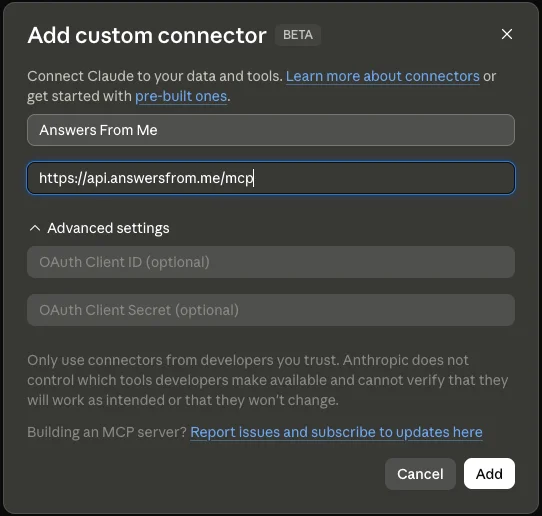
After adding the connector, the client walks you through signing in to AFM and authorizing access. Once authorized, the AFM tools are available in the client.
OAuth Alternative - API Bearer Token
OAuth is preferred for the Claude and ChatGPT web and desktop clients. For Gemini CLI and other command-line tools, use the API key approach described below.
The MCP server uses the same secret keys as the API. To create one, sign in to the app, click Settings in the left navigation of your Expert Dashboard, click the Connect tab, and scroll to the API Keys card. Turn on Enable API keys, then select the Create new secret key button. API keys are part of the Basic plan and higher; OAuth works on every plan (see Plans, Usage and Limits). The secret key will only be presented once, so make sure to copy it and put it in a safe place. You can create as many keys as you want for different applications, and delete a key if it is no longer used.
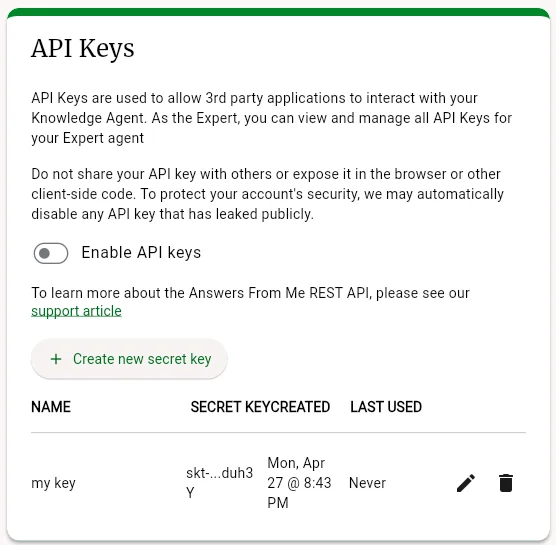
The same secret key works for both the MCP server and the Open Responses API.
Connecting from Claude Code
Authentication uses your secret key as a Bearer token in the Authorization header. To register the AFM server with Claude Code, run:
claude mcp add --transport http afm 'https://api.answersfrom.me/mcp' \
    --header "Authorization: Bearer $AFM_API_KEY"
(Where $AFM_API_KEY is the secret key you created in the previous step and is loaded into your environment.)
After adding it, Claude Code can call ask_expert, list_experts, and search_experts like any other tool.
Other MCP hosts follow the same pattern: a remote (HTTP) MCP server at https://api.answersfrom.me/mcp with
the header Authorization: Bearer (your secret key).
Examples
You don't call these tools directly — you ask for what you want in plain language, and the tool you're working in decides which tool to call. A few prompts that work well:
"Find me an AFM expert on service design" — searches the public Expert directory and comes back with matching Experts, their names, and their handles.
"Consult my most relevant AFM expert about this pricing page" — lists the Experts you can already reach, picks the best fit, and asks them.
"@@scott, can you review my resume (attached)?" — goes straight to Scott's Agent. Whatever you're working on in the conversation goes with the question, so the Expert answers on your actual material rather than a description of it.
"Ask @@scott a follow-up: what would you change first?" — stays on the same thread with Scott's Agent, so you don't have to restate the context.
"@@ what am I missing here?" — a bare @@ lets the host pick from the Experts you can reach.
Naming an Expert with @@ is the most direct way to get the answer you want. Without it, the host decides whether an Expert is worth consulting and which one to ask, so being specific about the topic — and that you want an Expert — makes it more likely to reach for one.
Advanced Configuration — Advising the LLM on When to Consult Experts
By default, the server advises the host to consult an Expert only when you explicitly ask for one. The optional invocation_mode query parameter changes the advice the server gives, which you set once when you register the server:
explicit(default) — Ask an Expert only when you request one with@@or by name.suggest— Suggest consulting a relevant Expert, but wait for you to agree before asking.proactive— Consult an Expert without being asked when an Expert's answer would materially improve the response, and say so when it does.
Set the mode by adding it to the registered URL. For example, to let the host suggest Experts:
claude mcp add --transport http afm 'https://api.answersfrom.me/mcp?invocation_mode=suggest' \
    --header "Authorization: Bearer $AFM_API_KEY"
This is guidance to the LLM rather than a rule it must follow — the host ultimately decides which tools to call and when. Treat the mode as a way to set expectations, not a guarantee.
Was this article helpful?
That’s Great!
Thank you for your feedback
Sorry! We couldn't be helpful
Thank you for your feedback
Feedback sent
We appreciate your effort and will try to fix the article