Overview
Your Agent Link is a direct pathway that allows seekers to instantly access and chat with your Knowledge Agent. This unique link eliminates barriers and provides seamless access to your expertise, making it easier for knowledge seekers to get the help they need.
Check it out in this quick video, and continue reading for more details.
What is an Agent Link?
An Agent Link is an "unlisted" URL that connects seekers directly to your Agent’s chat interface, where they can immediately begin chatting with your Knowledge Agent. When someone clicks your Agent Link, they land directly in the chat interface with your Knowledge Agent (after authenticating).
Locating Your Agent Link
Navigate to Settings: From your dashboard, click on the Settings section in the left sidebar
Click the General tab if not already selected.
Find the Agent Link section: Scroll down to locate the Agent Link section of the tab
Copy Your Link: Your can select and copy your Agent Link
You can also click on the QR code icon to get a QR code for your Agent Link that you can share in presentations or on business cards
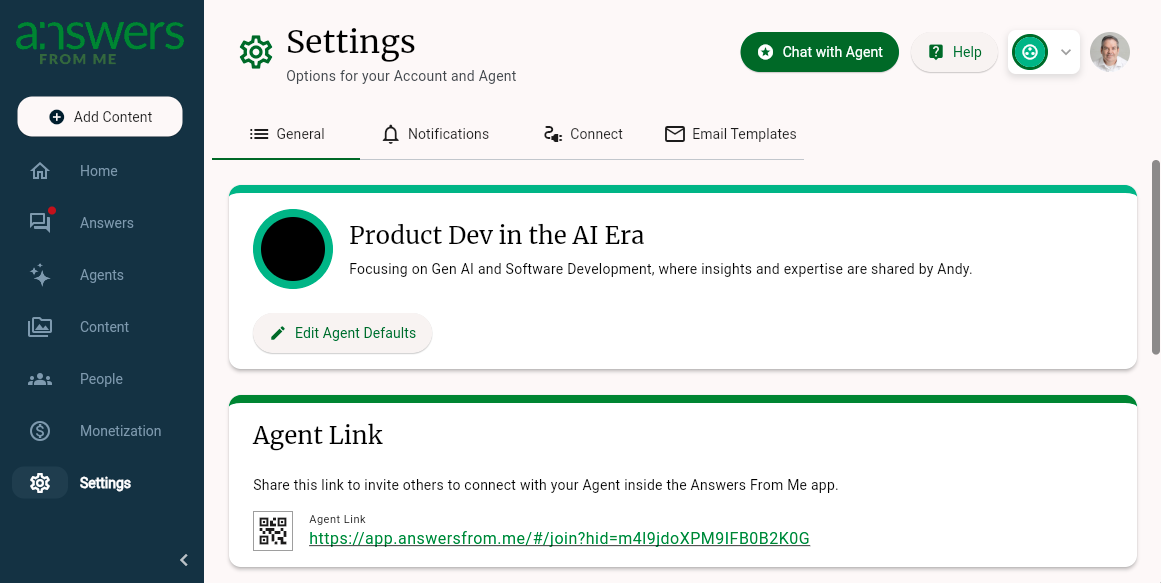
Your Agent Link appears in the General tab of the Setting section
How to Share Your Agent Link
Your Agent Link can be shared in a number of ways. If you want an easier to remember URL to access your expertise, consider enabling your Expert Page.
Direct Sharing
Copy and Paste: Click the copy icon next to your Agent Link and paste it anywhere you want to share your expertise
Email Signatures: Add your Agent Link to your email signature for easy access
Social Media: Share your link on professional social media platforms
Business Cards: Include the link or QR code on digital or physical business cards
Integration Options
Website Integration: Embed your Agent Link on your personal or business website
Blog Posts: Include your Agent Link in relevant blog content
Professional Profiles: Add to LinkedIn, professional directories, or other platforms
What Happens When Someone Uses Your Agent Link
When someone clicks your Agent Link:
Direct Access: They're taken directly to your Knowledge Agent chat interface
Immediate Engagement: They can start asking questions right away without additional navigation
Personalized Experience: They interact with your customized Knowledge Agent
Trackable Engagement: You can monitor new seekers and conversations from your dashboard
Benefits of Using Agent Links
For Experts:
Streamlined Sharing: One link provides access to all your expertise
Analytics: Track who accesses your agent
For Seekers:
Instant Access: No complex search or navigation required
Direct Communication: Immediate access to your Knowledge Agent
Best Practices
Customize Your Agent First
Before sharing your Agent Link widely:
Complete Your Profile: Ensure your name and description clearly communicate your expertise
Add Rich Content: Upload relevant documents, guides, and resources to enhance your Agent's knowledge
Test Your Agent: Verify that your Knowledge Agent provides helpful, accurate responses
Strategic Sharing
Target Your Audience: Share your link with people who would benefit most from your specific expertise
Provide Context: When sharing, briefly explain what others can expect to learn or accomplish
Include a Call-to-Action: Encourage people to ask specific types of questions
Monitor and Engage
Check Your Dashboard: Regularly review who has accessed your Agent
Get email updates: By default, you'll be notified of activity with your Agent. You can manage notifications in the Notifications tab of the Settings section.
Gather Feedback: Ask your audience about their experience to improve your Agent
Update Content: Keep your knowledge base current and relevant
Troubleshooting
Link Not Working?
Verify you're copying the complete URL from the Agent Link section
Check that your Agent is properly configured with a name and description
No One Joining?
Ensure your Agent Link is being shared in relevant contexts
Consider adding more detailed descriptions of your expertise
Verify your Agent is responding helpfully to test questions
Managing High Traffic?
Monitor the People tab to see engagement levels
Consider creating focused content for common questions
Update your Agent description to set clear expectations
Getting Help
If you need assistance with your Agent Link or Knowledge Agent, check out the in app help (available from the Help button at the top of the screen), review available help at https://help.answersfrom.me or contact support.
Ready to start connecting with knowledge seekers? Copy your Agent Link and begin sharing your expertise with the world!
Was this article helpful?
That’s Great!
Thank you for your feedback
Sorry! We couldn't be helpful
Thank you for your feedback
Feedback sent
We appreciate your effort and will try to fix the article